Troubleshooting
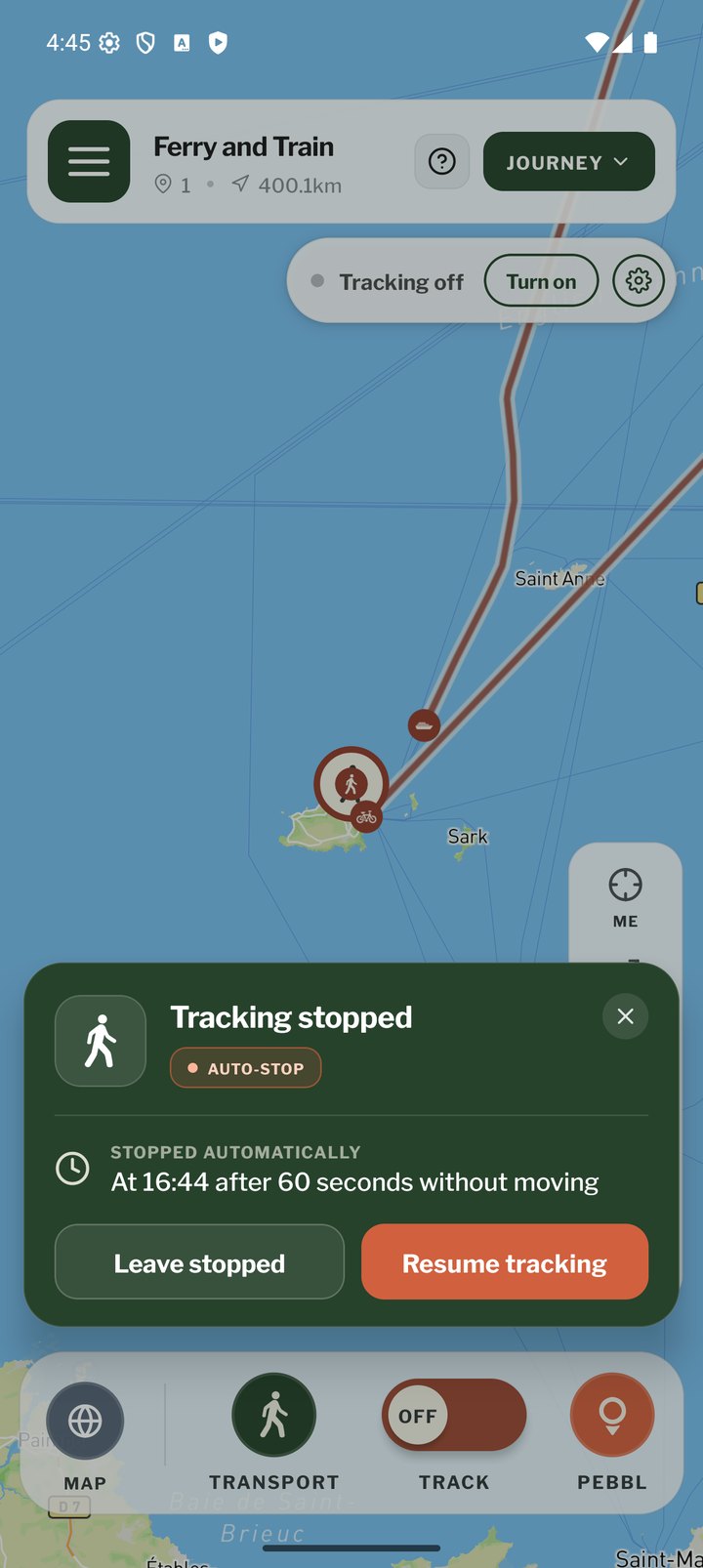
Tracking Stopped by Itself
Most often this is the auto-stop: you were still for longer than the auto-stop time. The notification and the card on the map tell you when and why, and Resume tracking starts again. If it stops while you are moving, check the location permission is Always and, on Android, that battery optimisation is off for Pebbls.
Gaps or Jumps in the Route
Poor GPS signal (see "GPS Signal Tips") or a phone that paused the app. Wrong points can be removed afterwards with the GPS track editor under JOURNEY › Edit Chapter › Edit GPS Track.
My Route or Photos Aren't Online
Open the upload status button in the menu. If items are waiting, check you have a connection and that Settings › Uploads is not waiting for Wi-Fi. Tap Sync Now. Then allow up to 5 minutes for the website to update.
No Flyby Film
Flyby films are only made for chapters with more than 5 km of route, a recorded track of more than 120 GPS points, at least 3 Pebbls and 4 photos, and no flying transport, about an hour after the last change. See "Flyby Films".
Date and Time Warning
Pebbls timestamps every point and Pebbl with your phone's clock. If the clock is wrong, points arrive out of order and Pebbls land in the wrong chapter, so the app warns you. Fix: phone Settings › Date & Time › set automatically, then restart Pebbls.
"This chapter was created with a newer version"
Someone (or you, on another phone) edited the chapter with a newer app. Update Pebbls from the App Store or Google Play and open it again.
Last Resorts
- Settings › Advanced › Restart App
- Settings › Advanced › Restore Defaults (keeps your journeys)
- Settings › Support › Report a Bug, or Send Location Logs, then email hello@pebbls.com with what happened