Syncing and Uploads
How Syncing Works
Everything you record is saved on the phone first and uploaded automatically: GPS points every few minutes, Pebbls and edits straight away, photos and videos as a background upload. Updates can take up to 5 minutes to show on the website.
No Signal?
Keep going. Pebbls records the whole route offline and uploads when you are back in coverage, whether that is minutes or days later.
Upload Preferences
Settings › Uploads controls what goes over mobile data:
- Unlimited: upload everything on any connection (default)
- Large files: Wi-Fi only: videos and large photos wait for Wi-Fi
- All media: Wi-Fi only: all photos and videos wait; GPS still uploads on mobile data
- Media and GPS: Wi-Fi only: nothing uploads until Wi-Fi, so your online map only updates when you are connected
The Sync Queue
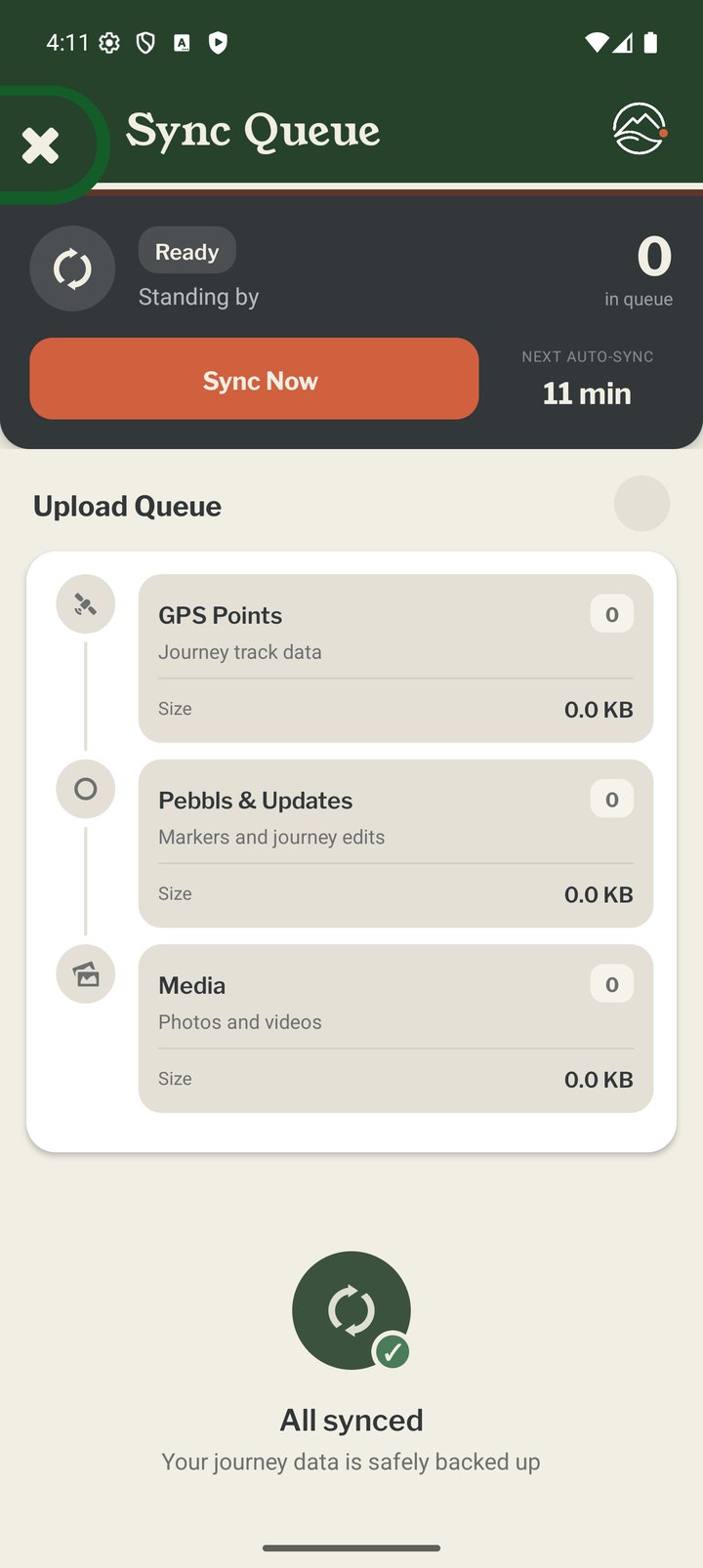
The upload status button next to your name in the main menu shows a tick when everything is uploaded, or the number of items waiting. Tap it to open the Sync Queue: the status (Syncing, Offline, Wi-Fi only or Ready), a Sync Now button, the queue split into GPS points, Pebbls and media, and each media upload's progress marked Queued, Uploading, Retrying or Stuck. Tap Skip on a stuck item to move on; it stays on your phone. An "Uploads paused" banner tells you why (waiting for Wi-Fi or for a connection) and uploads resume by themselves.
Where Uploads Go
Photos and videos are sent to the nearest of four upload servers (Europe, USA, Australia or Singapore) and then passed on to the main Pebbls server, which resizes them, so a photo can take a few minutes to appear.
Before Logging Out
Logging out, or switching to another journey, with items still in the queue loses them. The app warns you ("You have N location points that haven't been uploaded yet") with Stay Logged In or I understand, logout anyway. Tap Sync Now and wait for "All synced" first.