App Settings
Finding Your Way Around
Open the menu and tap Settings. The Settings screen shows one row per group with its current value, so you can see at a glance whether auto-stop is on or which units you are using.
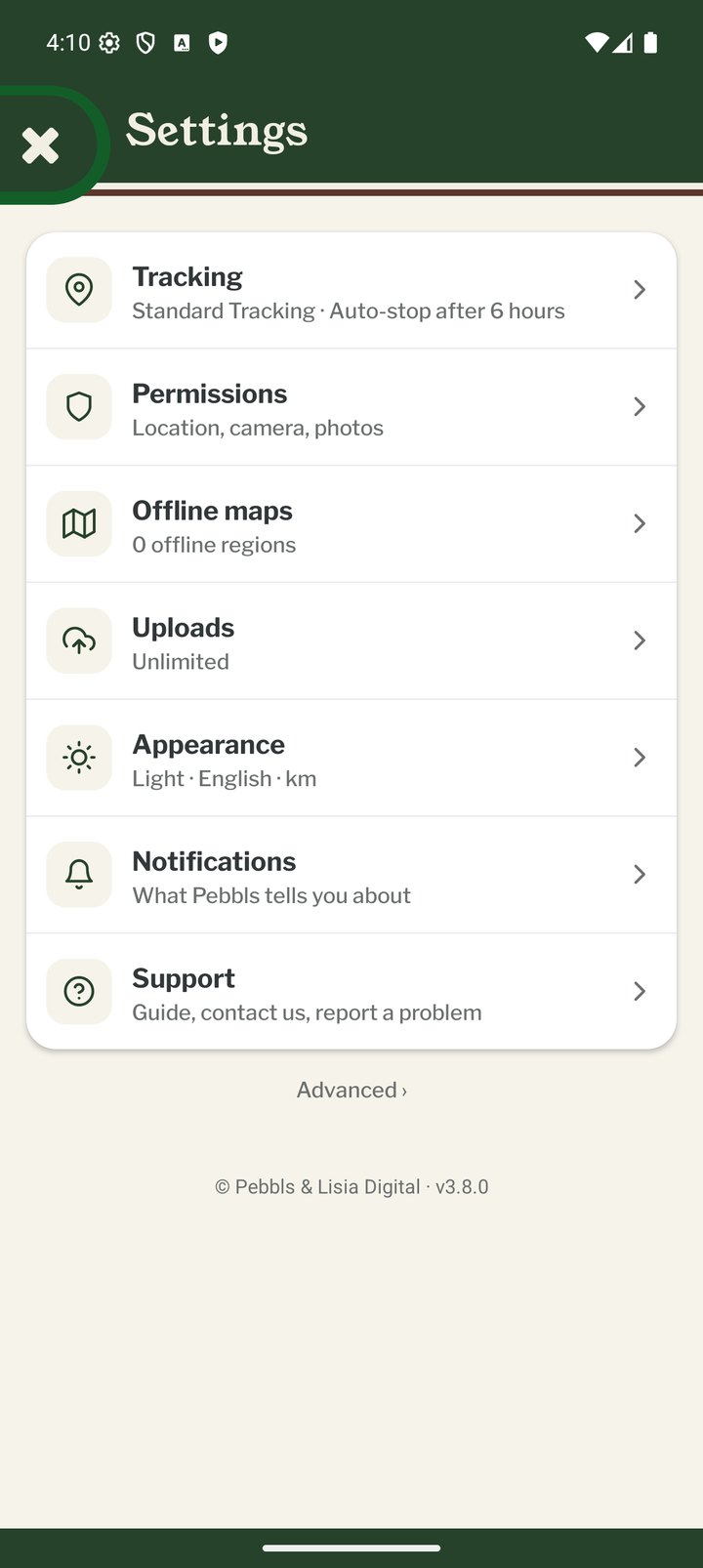
Tracking
Live or Standard tracking, Tracking Privacy and the auto-stop time.
Permissions
The status of location, camera, photo and notification permissions, with a shortcut to the phone's settings.
Offline Maps
Download map regions for use without signal. See "Offline Maps".
Uploads
When photos, videos and GPS data are uploaded: over any connection, large files on Wi-Fi only, all media on Wi-Fi only, or media and GPS on Wi-Fi only.
Appearance
Theme: Light, Dark or System (follows your phone). Language. Distance Units: kilometres or miles, used everywhere in the app and on your cards. Haptics: the small vibrations on taps and toggles; turn them off if you dislike them.
Notifications
Which push, website and email notifications you receive. See "Notifications".
Support
Open this help guide, Contact Us, Report a Bug, Send Location Logs, replay the Welcome Guide, and Check for Updates. Small updates download in the background and then show Restart to Update; restarting takes a few seconds and keeps your data. Bigger updates come from the App Store or Google Play. After a long trip you may also see "Enjoying Pebbls?", an invitation to leave a review, which you can dismiss or answer I've Already Reviewed.
Advanced
Diagnostics sharing, Restart App, System Settings and Restore Defaults. You rarely need these unless support asks.