Starting a New Chapter
What is a Chapter?
Chapters are the sections of your journey, like chapters in a book: a day, a stage of a route, a country. The map screen in the app shows the chapter you are currently recording; the full journey map on the website shows them all together. Breaking a journey into chapters makes it easier to read, and each chapter can get its own flyby film.
Creating a New Chapter
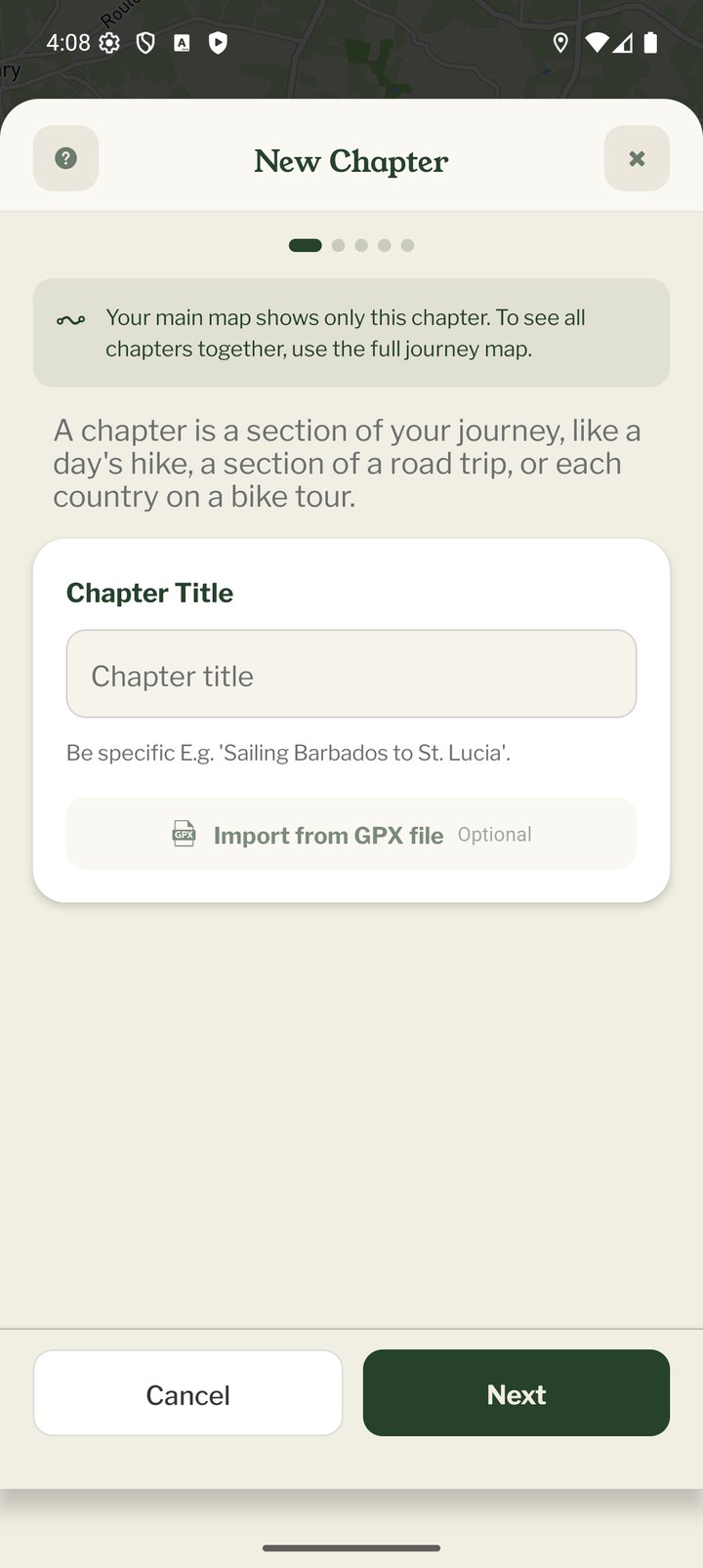
Stop tracking, then tap JOURNEY › New Chapter. Everything is on one screen:
- The chapter title, e.g. "Sailing Barbados to St. Lucia"
- How you're travelling. Pebbls suggests a transport from the title and your earlier chapters and says why, e.g. "Same as earlier chapters". Tap it to choose another; you can change it at any time while tracking
- An optional description
- Start Chapter, at the bottom
Hiding Your Start or End
Tap "Hide your start or end location" to set a location mask for the start and end of the chapter: No mask, 500 m, 1 km or 3 km. Masks hide the part of your route nearest to your home or campsite; see "Location Masking".
Import from GPX
On the New Chapter screen tap "Import from GPX file" to build the chapter from a track you already have, for example from a GPS watch or a route-planning app. The file needs at least 10 track points. Waypoints in the file can be imported as Pebbls. GPX import is only available when creating a new chapter in the app (the website's GPX button says Coming Soon), and you can still add Pebbls along the imported route afterwards. It is marked Beta; tell us if a file fails.
Editing a Chapter
JOURNEY › Edit Chapter lets you change the title, description, start date and location masks, download the chapter as GPX, open the GPS track editor or delete the chapter. See "Editing a Chapter".